Access SM Planner, GeoPro, and Stagtiks from your account.
Already have an account?
Enter your email or username and we'll send you a link to reset your password.
Learning Center
A quick, guided walkthrough of your dashboard — how to set up your account, what each app does, and where to click first. No jargon, just the fastest path from sign-up to your first result.
3 apps
one workspace, one login
5 minutes
to your first result
No
credit card required to start
Guided Tour
Pick an app below for a quick look at what's inside and how to use it.
GeoPro is where you check and improve how visible your site is to ChatGPT, Gemini, and other AI engines. It has three tools you'll use most:
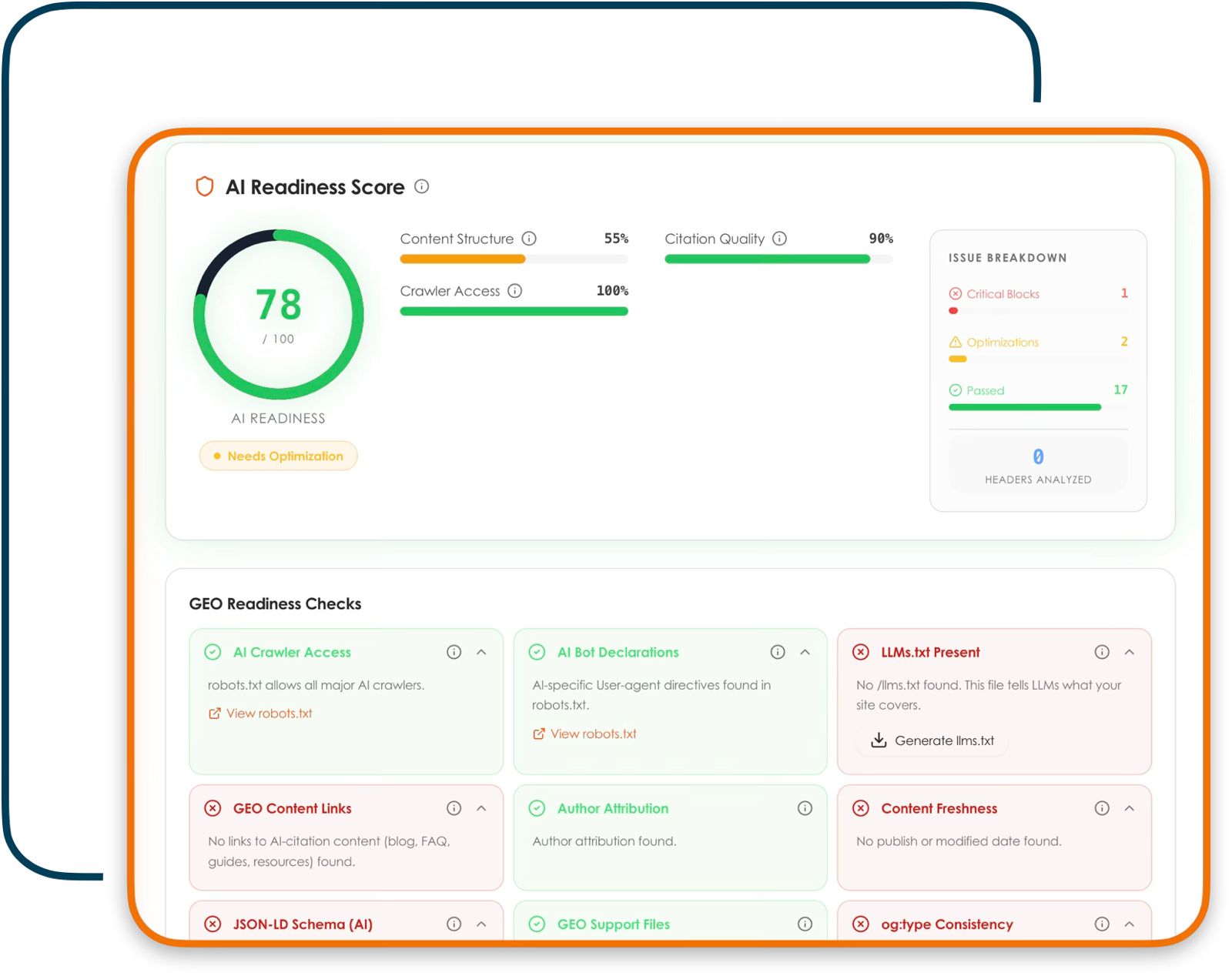
Paste any URL and click Analyze. You'll get a 0–100 score broken down by content structure and citation quality, plus a list of issues sorted by severity — start with the critical ones.
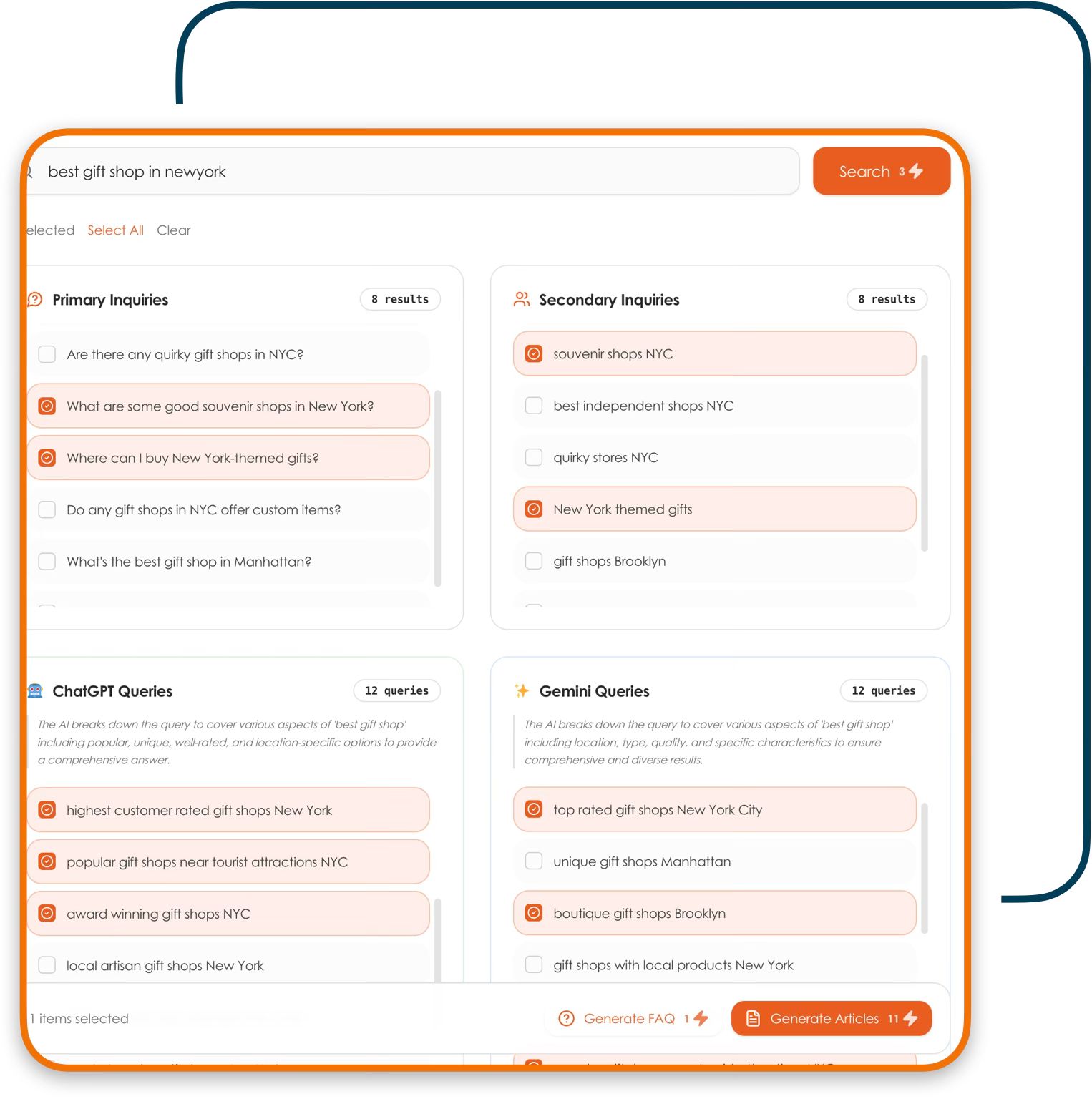
Search a topic to see the real questions people (and AI engines) are asking about it. Select the ones that matter to your business.
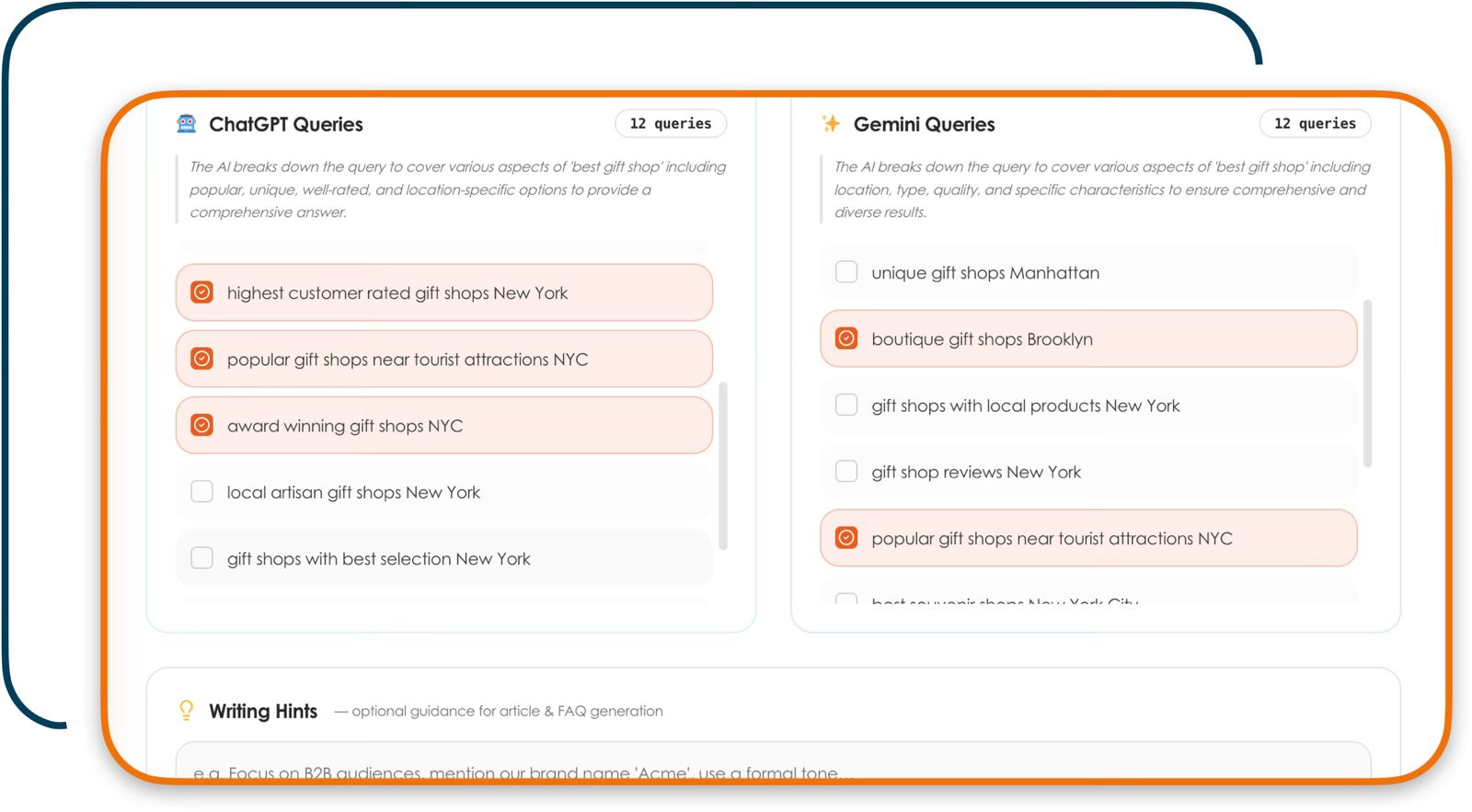
With inquiries selected, click Generate FAQ or Generate Articles to turn them into citation-ready content you can publish straight back to your site.
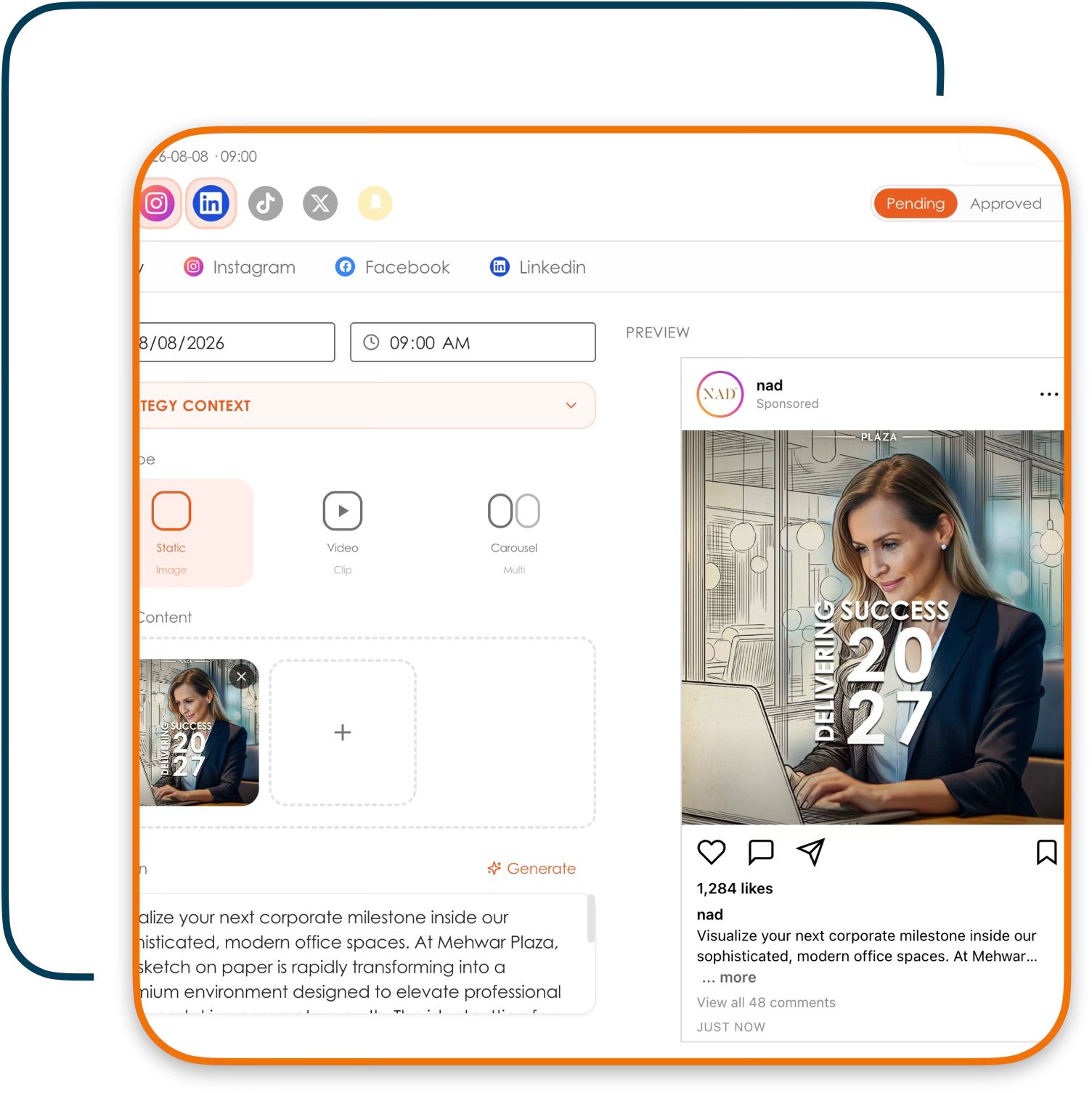
SM Planner is where you draft, schedule, and preview posts across every platform before they go live.
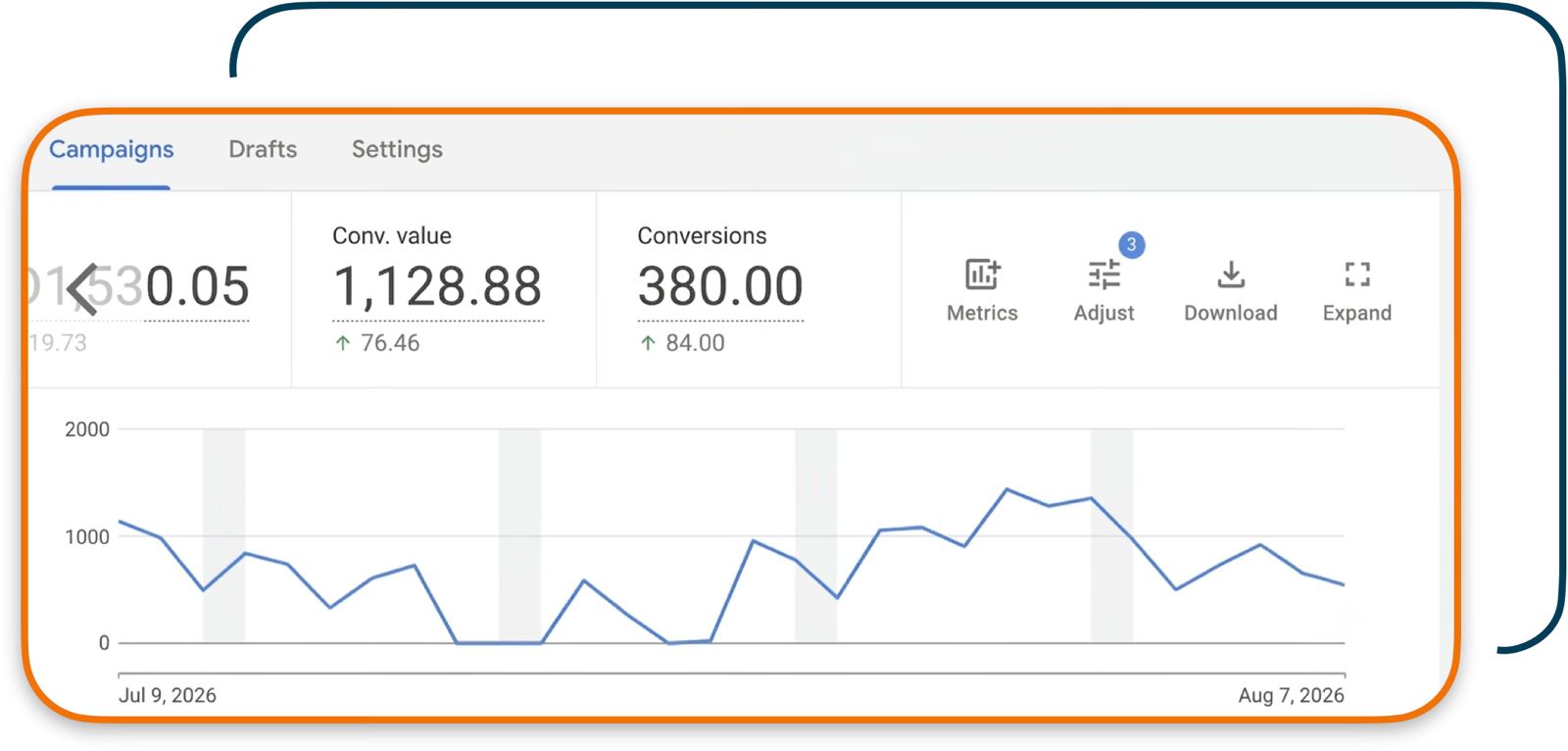
Stagtiks keeps your ad campaigns, drafts, and performance metrics in one dashboard.
Getting Started
Sign up free — no credit card needed. One login gives you access to GeoPro, SM Planner, and Stagtiks from the same dashboard.
Use the app switcher at the top of your dashboard to jump between AI-search visibility, social content planning, and ad campaigns — no separate logins.
Scan a URL, schedule a post, or check today's ad numbers. Each app is built to hand you a usable result within your first few clicks.
Common Questions
No. One microsells account gives you access to GeoPro, SM Planner, and Stagtiks from a single dashboard — use the app switcher at the top of the page to move between them.
Start with whichever matches today's task: GeoPro for AI-search visibility, SM Planner for scheduling social posts, or Stagtiks for ad campaigns. Most teams end up using all three — the guided tour above is a good five-minute overview of each.
Every plan, including Free, includes access to all three apps — no credit card required to start. See the Pricing page for full plan details.
Use the Contact Us page to reach out — every plan includes support.

Ready When You Are
Jump into your dashboard and run your first scan, post, or campaign — everything above is waiting right where you saw it.
